

Looking for a flexible way to work from home?
Today, I’m going to introduce you to another side hustle that earns money by creating subtitles for YouTubers and other global creators.
Look, today most of the content is in video format. In the past, we used to read articles to learn something, but now we watch videos for almost everything. As a result, the number of content creators has increased massively.
However, with this rapid growth comes one small problem.
If a video is made in Spanish or German, it reaches only people who understand that language, missing out on a global audience.
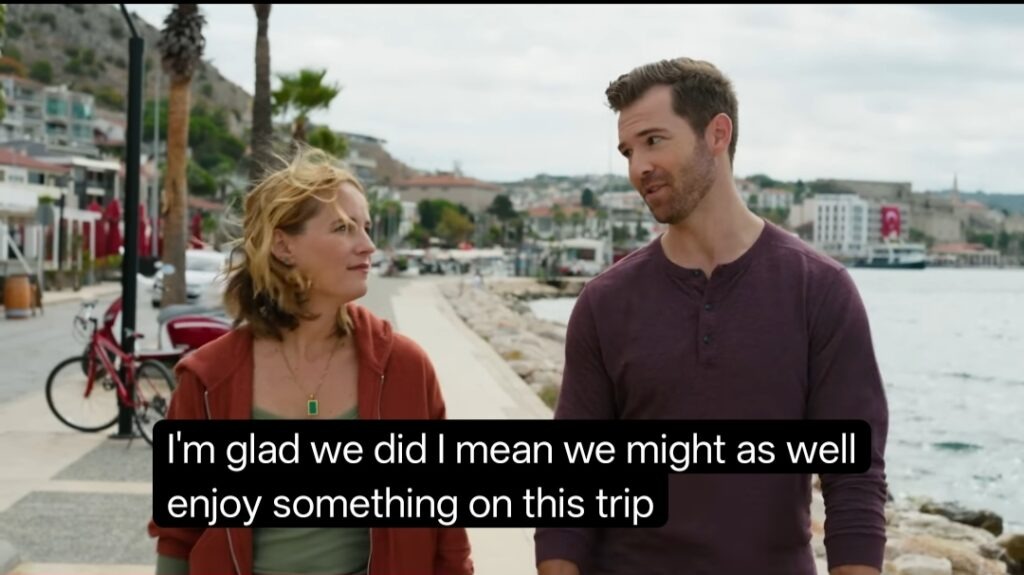
Recently, while watching the Lost in Love series on YouTube, I understood the characters’ emotions so well thanks to the subtitles. That’s when I realised how important subtitles really are.
Why subtitles are necessary
Do you know one thing?
Most people watch videos without turning on the audio, for example, on buses or in offices.
Adding subtitles to a video lets anyone watch it in their own language.
Google or YouTube algorithms also get significant help from these subtitles in understanding what the video is about
If you are planning to start a channel without showing your face, check out my guide on the best faceless YouTube channel ideas for girls. Adding subtitles to these types of channels can double your views
It means you are showing your content to the whole world.
AI vs Human Touch
If you think that AI is in our hands, why do we need a human subtitles generator?”
Let me clarify this.
AI does not fully understand some of the words we use, our accents, or our comedic timing. It translates mechanically, and as a result, the video’s feel is lost.
To get this,
You’ve probably seen it on Instagram. Now, many Reels come with automatic dubbing. This is the automatic Meta translator. Popular videos that went viral in German, Spanish, and English are being translated into local languages. The concept and language are understandable, but the wording doesn’t sound natural. It feels like it’s been mechanically translated.
Did you feel the same way?
And one more thing is
The same word can have different meanings in different contexts. Choosing the right word for the situation is something a human can do.
For example, let me take the word ‘right.’
This has multiple meanings in different contexts.
It has roughly 6-7 different meanings.
Such as
- Direction (Opposite of left)
- Moral / Ethical
- Legal right
- Immediately / Exactly
- Completely
- Agreement
- Emphasis
I feel that identifying the correct word according to context is difficult for an AI translator.
And the last one is
Capturing the emotion in a video and writing subtitles accordingly is possible when there is a “human touch.” So professional YouTubers still trust writers.
skills needed for this job
- You should write clearly without mistakes in both the source and target languages.
- If you translate an English video into Spanish, you should be fluent in both languages.
- It is essential to use grammar correctly, spell words accurately, and place punctuation marks like commas, full stops, and question marks correctly.
- Every sentence you write should be clear, easy to understand, and free from confusion.
Top AI tools you can use for your subtitles work
Okay, now I’ll tell you which tools you should use to get started in your subtitling career and how to get started. By 2026, some great AI tools will be available for you. You can use these tools for your subtitling work.
There are important AI tools that you can use for subtitle generation. In each AI tool, you’ll see many popular features. But I’m not going to list them all. I’ll only tell you which ones are useful for subtitle generation. Okay?
AI transcription tools:
Otter AI: As far as I know, this is one of the best tools. It converts spoken words from meetings, lectures, or interviews into text and delivers them to you. You can then edit that draft and use it for your work.
One important thing about this is that it does live transcription really well. When you’re speaking live or during a meeting, it converts the conversation into text perfectly.
If you’re at work and have any job-related meetings—like on Microsoft Teams or Google Meet—it automatically translates the conversation. So you can review the entire meeting summary afterwards and search for any summary you need, making this tour extremely useful.
95% Accuracy
According to some reports, it claims to deliver 95 per cent accuracy. So, in that regard, I think it’s very useful for you. But remember one thing: when you feed it audio, make sure it’s very clear. That way, you’ll get a perfect output.
SRT File
As a subtitle generator, this is the main feature you need. I’ll explain it in detail. SRT is a file. When you upload your video to Otter AI, it generates text-based subtitles. Another important thing is that it also includes timestamps for the text where your video needs breaks. This is very useful to you.Furthermore, you can generate subtitles not only on Otter but also on many other websites. You can generate them there, too.
As soon as you upload a video to Otter.ai, it sets timestamps for every sentence, including microseconds. You don’t need to manually set any timestamps.
It’s frustrating for viewers when the spoken words in the video don’t match the subtitles. Otter.ai syncs the SRT file to the speech using audio waveforms.
Once you’re done editing, just click the Export button at the top and select the SRT (.srt) option. The file will download to your computer.
On the Free Plan in Otter.ai, you can only export the text (.txt). To download it as an SRT file, you need to have a Pro or Business plan.
Speaker diarization: This is a very useful feature. How does it help you? Suppose you have multiple speakers in your video; based on their pitch, they are assigned labels like “Speaker 1” and “Speaker 2.” You can also conveniently rename these labels.
4. Interactive Editor
AI transcripts can sometimes misinterpret slang or fast-spoken words. The editor in Otter works very intelligently to correct them.
If you click on any word in the transcribed text, the audio will play back from that exact second. You don’t have to listen to the entire video over and over. If you have any doubt about anything, click the word and hear whether it’s correct.
As the audio plays, each word is highlighted, making proofreading much faster. If you edit a word, there’s an option to change it simultaneously wherever it appears in the video.
4. Custom Vocabulary
AI tools are generally good at recognising common words, but they often misinterpret specialised terms. This feature is very useful for overcoming this. You can provide Otter with a list of difficult words, brand names, or technical terms related to your video’s subject in advance.
For example, imagine you’re creating subtitles for a medical or gaming video. The AI will accurately spell the unusual names in it rather than misspelling them.
This way, after the subtitles are generated, you won’t have to go through and change the spellings of every word. Your accuracy will be much higher the first time.
5. Faster Playback
Writing subtitles is one thing, but checking if they are correct is another. This takes a lot of time.
In Otter, you can play and listen to the audio at 1.5x, 2.0x, or 3.0x speed.
It normally takes an hour to verify a one-hour video. But with this playback speed feature, you can listen and check if all the subtitles are correct in just 20-30 minutes.
If you hear any mistakes, stop immediately and correct them. This is very useful for delivering more videos in less time.
Rev is very useful for subtitles and transcription. In Otter.ai, you’ll find more AI features, but Rev also offers services performed by humans.
Here’s a detailed look at Rev:
Key services on Rev:
1. AI Transcription/Subtitles: Just like Otter, you can generate subtitles with AI.
2. Human-Generated Subtitles: At Rev, professionals listen to your video and write the subtitles. This gives you 99% accuracy.
3. Global Subtitles: You can convert a video in one language into another and add subtitles.
Rev features useful for subtitlers:
1. Rev Browser Editor:
The Rev online editor is very powerful.
You can see where the subtitles appear on the screen as the video plays.
It automatically warns you if the subtitle length isn’t correct for the speech speed.
2. Multiple Export Formats:
In addition to SRT, you can download the file in dozens of client-requested formats, such as VTT, SCC, TTML, and TXT. This is very useful when working with large production companies.
3. Global Subtitles:
If you can both translate and transcribe, Rev can be a great source of income for you. You can earn 5 to 10 times the standard rate by translating a video into another language and adding subtitles.
4. Burnt-in Captions:
Some clients ask us not to send a separate file, but to have the subtitles printed directly on the video. You can do this very easily in Rev.
5. Integrations:
You can directly connect your YouTube, Vimeo, or Zoom accounts to Rev. This saves you the hassle of downloading and re-uploading files.
Difference between Otter.ai and Rev:
Otter.ai: You can use it to make your own work easier. As a freelancer, you can use Otter to create subtitles and sell them to clients.
Rev.com: It’s a platform where you can join as a “Revver” and earn money directly from Rev by transcribing subtitles for the videos they provide.
Descript is an all-in-one video and audio editor. It is very useful for subtitles and video editing. It’s extremely handy for creating professional subtitles.
1. Text-Based Editing:
As soon as you upload your video, it is converted into text. If you delete any word in that text, the corresponding part in the video is automatically deleted. When adding subtitles, you can remove any unnecessary gaps in the video.
2. Fancy Captions:
When you watch Instagram Reels or YouTube Shorts, you’ve probably seen subtitles that change colour to match the spoken words. These are called dynamic captions.
You can create such Dynamic Captions very easily in Descript. You can change the fonts, colours, and animations.
3. Studio Sound:
For subtitles to be accurate, the audio needs to be good. If the video the client sends you is noisy, you can use Descript’s “Studio Sound” feature to convert it to professional studio quality.
4. Overdub:
If the client says something wrong in the video, you don’t have to ask them to re-record it. You can change the text, and the AI will correct the word in the client’s own voice.
5. Easy Export & SRT Support:
Like Otter, you can export SRT and VTT files. Furthermore, you can save the video in high quality with the subtitles permanently embedded.
Descript is very useful for subtitling Reels or Shorts. With it, you can remove filler words and generate automatic captions.
To put it more simply, Otter.ai is great for notes and basic subtitles.
Rev is useful for accuracy and translation.
Descript is useful for stylish subtitles and creative video editing.

Leave a Reply